Call of Duty: Black Ops Cold War uses a familiar first-person shooter layout, but several buttons perform more than one action. The left stick handles both movement and sprinting, the crouch button also controls sliding and going prone, and the reload button doubles as the main interaction command.
The same core controls are used across Campaign, Multiplayer and Zombies. Mode-specific commands are added when necessary: Multiplayer uses Field Upgrades, pings and Scorestreaks, while Zombies adds armor stations, crafting tables, Pack-a-Punch machines and other contextual interactions.
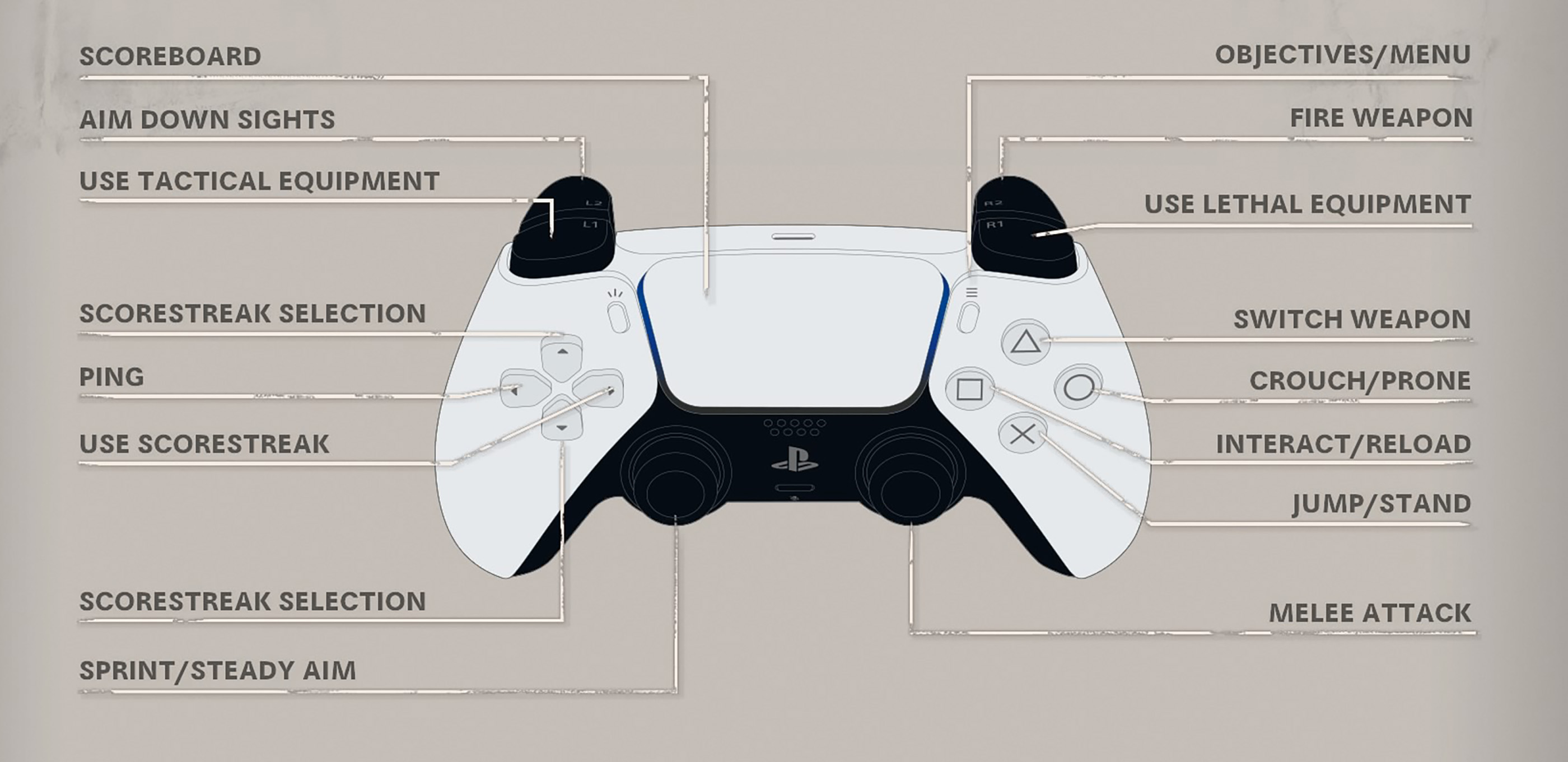
The PlayStation controls below match the default controller diagram shown in the attached in-game settings screen. Xbox inputs use the equivalent button positions. PC players can fully remap keyboard and mouse commands through the settings menu.
Call of Duty: Black Ops Cold War Controls
| Action | PlayStation | Xbox | PC Default |
|---|---|---|---|
| Move | Left Stick | Left Stick | W / A / S / D |
| Look / Aim | Right Stick | Right Stick | Mouse |
| Sprint | Press L3 while moving | Press Left Stick while moving | Left Shift |
| Steady Aim / Hold Breath | Press L3 while using a supported scope | Press Left Stick while using a supported scope | Left Shift |
| Walk Slowly | Controlled with Left Stick | Controlled with Left Stick | Left Alt |
| Aim Down Sights | Hold L2 | Hold LT | Right Mouse Button |
| Fire Weapon | R2 | RT | Left Mouse Button |
| Use Tactical Equipment | L1 | LB | Q / Mouse Button 5 |
| Use Lethal Equipment | R1 | RB | G / Middle Mouse Button |
| Switch Weapon | Triangle | Y | 1 / 2 or Mouse Wheel |
| Reload | Square | X | R |
| Interact / Pick Up / Open | Square | X | F |
| Jump / Stand / Mantle | Cross | A | Space |
| Crouch | Tap Circle | Tap B | C |
| Go Prone | Hold Circle | Hold B | Left Ctrl |
| Slide | Press or hold Circle while sprinting | Press or hold B while sprinting | C while sprinting |
| Melee Attack | Press R3 | Press Right Stick | E / Mouse Button 4 |
| Campaign Takedown | Hold R3 behind an enemy | Hold Right Stick behind an enemy | Hold Melee behind an enemy |
| Use Field Upgrade | L1 + R1 | LB + RB | X |
| Ping Location | D-Pad Left | D-Pad Left | Z |
| Danger Ping | Double-tap D-Pad Left | Double-tap D-Pad Left | Double-tap Z |
| Select Previous Scorestreak | D-Pad Up / Down | D-Pad Up / Down | 3 / 4 / 5 / 6 |
| Select Next Scorestreak | D-Pad Up / Down | D-Pad Up / Down | 3 / 4 / 5 / 6 |
| Use Selected Scorestreak | D-Pad Right | D-Pad Right | Corresponding Scorestreak Key |
| Open Scoreboard / View Objectives | Touch Pad | View | Tab |
| Open Pause / Objectives Menu | Options | Menu | Esc |
| Open Social Menu | Menu Interface | Menu Interface | F1 |
| Push to Talk | Voice Chat Setting | Voice Chat Setting | V |
| Change Optic Zoom | Shared or assigned controller input | Shared or assigned controller input | Assigned Change Zoom Key |
| Deploy Parachute | Cross when prompted | A when prompted | Space when prompted |
| Cut Parachute | Circle when prompted | B when prompted | C when prompted |
| Enter / Exit Vehicle | Square | X | F |
Layout note: Black Ops Cold War includes several controller presets. Selecting Tactical, Bumper Jumper, Stick and Move, or another layout changes some commands. The game also lets you swap L1/R1 with L2/R2.
Movement Controls Explained
Use the left stick or WASD to move. Press the left stick or Left Shift while moving to sprint. Sprinting lets you cross exposed areas quickly, reach objectives and perform a slide, but it also delays weapon readiness compared with already aiming around a corner.
Walk Before Entering an Unknown Room
Sprinting through every doorway leaves less time to react. Reduce speed before entering buildings, climbing stairs or approaching an objective where another player may already be aiming.
On PC, hold Left Alt to walk slowly. A controller provides analog movement, so gently moving the left stick achieves a similar result.
Sliding
Begin sprinting and press the crouch button to slide. Sliding lowers the character briefly and preserves forward momentum.
Use a slide to:
- Cross a doorway quickly.
- Reach cover before incoming fire connects.
- Move through a low opening.
- Make yourself harder to track at close range.
- Challenge an enemy watching a predictable standing angle.
Do not slide into every fight. The animation can leave you committed to a poor direction, especially when the enemy is farther away than expected.
Crouching and Going Prone
Tap Circle or B to crouch. Hold it to go prone. Crouching reduces your visible profile and can improve control during sustained fire. Going prone offers greater concealment but makes changing direction and escaping grenades slower.
Use prone behind suitable cover rather than in the middle of an open lane. Parts of the character may remain visible even when the camera appears completely protected.
Jumping and Mantling
Press Cross, A or Space to jump, stand or mantle over an obstacle. The command used depends on Max—rather, your Operator's current stance and the object in front of them.
Look toward the top edge of a barrier before pressing Jump. When the mantle does not activate, move closer and approach the object more directly.
Aiming and Firing
Hold the left trigger or right mouse button to aim down sights. Press the right trigger or left mouse button to fire.
Aiming improves precision but narrows your field of view and slows movement. Lower the weapon between engagements so you can scan more of the map.
Pre-Aim Likely Enemy Positions
Raise the weapon before exposing yourself to a doorway, window or head-glitch position. This removes much of the delay between seeing an opponent and firing accurately.
Control Recoil Instead of Fighting It Late
Automatic weapons climb as they fire. Begin pulling the aim downward gently as the burst starts rather than waiting until the reticle has already moved above the target.
At longer distances, fire shorter bursts. The small pause between bursts lets recoil settle and saves ammunition.
Steadying a Scoped Weapon
When using a supported high-magnification scope, press L3, Left Stick or Left Shift to hold your breath and steady the weapon.
Use the command immediately before firing rather than holding it throughout a long search for a target. The steady period is limited.
Reloading and Interacting
Square or Xbox X serves as both Reload and Interact. On PC, these are separated by default: R reloads and F interacts.
The shared controller input may:
- Reload the active weapon.
- Pick up a dropped weapon.
- Open a door.
- Plant or defuse an objective.
- Revive a Zombies teammate.
- Use a crafting or upgrade station.
- Enter a vehicle.
Avoid Accidental Weapon Pickups
When reloading beside a dropped weapon, the game may prioritize the nearby interaction. Adjust the Interact/Reload Behavior setting if accidental pickups happen frequently.
Useful options include prioritizing a tap for reload, prioritizing interaction, or requiring a hold for one of the two actions.
Do Not Reload After Every Elimination
Reload when there is a genuine opening. Starting the animation immediately after every kill can leave you defenseless against the eliminated player's teammate.
Check the remaining magazine, move behind cover and listen before reloading.
Sprint Cancels Reload
The settings menu includes an option controlling whether sprinting interrupts a reload. Enabling cancellation gives you an emergency escape; disabling it helps the reload continue while moving quickly.
Switching Weapons
Press Triangle or Y to switch between the primary and secondary weapon. PC players can use the number keys or mouse wheel.
Switching to a secondary weapon is normally faster than reloading an empty primary during a close-range emergency.
Keep the Secondary Ready for a Purpose
A pistol is useful for finishing a weakened enemy. A launcher counters vehicles and aerial Scorestreaks. A shotgun or melee weapon can protect a close-range loadout.
Choose the secondary according to the weakness of the primary rather than treating it as an unused backup.
Tactical Equipment
Press L1, LB, Q or Mouse Button 5 to use Tactical Equipment. Tactical items create an advantage without normally dealing direct lethal damage.
Examples include:
- Stun Grenades.
- Flashbangs.
- Smoke Grenades.
- Stimshots.
- Decoys.
Throw Tactical Equipment Before Entering
A stun or flash is most valuable before exposing yourself to the room. Throw it from cover, wait for the feedback and enter while affected enemies are recovering.
Use Smoke for Objectives
Smoke interrupts long sightlines and can make planting, capturing, reviving or crossing open ground safer. It is not a solid wall, so change position instead of standing at the centre of the cloud.
Lethal Equipment
Press R1, RB, G or the middle mouse button to use your lethal item.
Common lethal equipment includes Frag Grenades, Semtex, Molotovs, C4 and Tomahawks.
Cook Frag Grenades Carefully
Hold the lethal input to delay a Frag Grenade before throwing it. A properly cooked grenade gives the target less time to escape.
Do not hold it without watching the fuse indicator. Throw early when the distance is uncertain.
Use Lethals to Move Enemies
A grenade does not need to score the elimination itself. Forcing an opponent out of cover may create an easy shot for you or a teammate.
Melee Attacks and Campaign Takedowns
Press R3, Right Stick, E or Mouse Button 4 to perform a melee attack. Melee is useful when an enemy is extremely close and aiming the firearm would be slower.
In Campaign, holding the melee command behind an unaware opponent performs a takedown when available.
Do Not Chase Melee Eliminations Across Open Ground
A close-range attack can be powerful, but sprinting directly toward a prepared opponent normally gives them an easy target. Use corners, cover and surprise.
Field Upgrade Controls
Press L1 and R1 together on a controller or X on PC when the Field Upgrade is charged.
Field Upgrades include tools such as:
- Field Mic.
- Trophy System.
- Jammer.
- Proximity Mine.
- Gas Mine.
- Assault Pack.
- Sam Turret.
Place Field Upgrades with a Plan
A Field Mic is strongest near a contested route. A Trophy System is useful beside an objective or defensive position. An Assault Pack should be accessible to teammates without being exposed to the enemy.
Saving a fully charged Field Upgrade for too long prevents progress toward the next use.
Ping Controls
Press D-Pad Left or Z to mark a location. Double-tap it to place a danger marker.
Pings are useful for identifying:
- An enemy position.
- A route the squad should watch.
- A vehicle or Scorestreak.
- An objective approach.
- A useful pickup in Zombies.
Place the marker precisely. A vague ping in the middle of a large building provides less useful information than marking a particular window or entrance.
Scorestreak Controls
Use the D-Pad to select an earned Scorestreak and press D-Pad Right to activate it. PC players use the assigned number key for each streak slot.
Some Scorestreaks activate immediately. Others open a targeting device, tablet or controllable view.
Choose a Safe Place Before Activating
Artillery, Cruise Missiles and controllable aerial streaks can leave the Operator unable to defend normally. Move behind cover before opening the targeting interface.
Use the Correct Streak for the Situation
Do not activate a Spy Plane when one is already providing the team with coverage unless the first is about to expire. Save area-denial streaks for objectives or predictable enemy spawns.
Scoreboard and Objectives
Press the Touch Pad, View button or Tab to open the scoreboard or objective information.
Check it briefly to see:
- The current score.
- Player performance.
- Objective captures or time.
- Connection quality.
- Remaining Zombies players and other mode-specific information.
Do not leave the scoreboard open while moving through an unsafe area. It blocks important visual information.
Vehicle Controls
Large Multiplayer modes include vehicles such as snowmobiles, gunboats and tanks. The exact acceleration, steering, weapon and seat-changing commands appear on screen when entering.
Use Square, X or F to enter and exit. Leave a damaged vehicle before it explodes, but avoid exiting into open enemy fire.
How to Change the Controller Layout
- Open Settings.
- Select the Controller tab.
- Highlight Button Layout.
- Choose Default, Tactical, Lefty, Bumper Jumper, Stick and Move or another available preset.
- Review the controller diagram.
- Test the layout in a private match or early Campaign checkpoint.
Useful Controller Presets
Default
The standard layout shown in the attached screenshot. It is familiar and easy to learn.
Tactical
Typically moves crouch, prone and slide to the right stick while placing melee on a face button. This helps players slide or crouch without removing their thumb from the aiming stick.
Bumper Jumper
Moves Jump to a shoulder input, allowing players to jump while continuing to aim.
Stick and Move
Places Jump on a stick click, offering another way to maintain camera control during movement.
Flipping Triggers and Bumpers
The controller menu lets you swap L1/R1 with L2/R2. This places aiming and firing on the bumpers, which have a shorter press distance than the triggers.
The change is useful for players who prefer faster digital-feeling inputs, but it also moves Tactical and Lethal Equipment to the triggers.
Aim Sensitivity Settings
Horizontal and vertical stick sensitivity determine how quickly the view turns. ADS sensitivity controls aiming speed while looking through the weapon sight.
The attached screen confirms separate settings for low-zoom and high-zoom ADS sensitivity.
Recommended Starting Approach
- Choose a look sensitivity that permits a comfortable 180-degree turn.
- Keep ADS sensitivity slightly lower for accurate tracking.
- Use a lower high-zoom value for sniper scopes.
- Change one value at a time.
- Test against moving targets before making another adjustment.
Aim Response Curve
The response curve determines how stick movement translates into aiming speed.
- Standard: Familiar acceleration suitable for most players.
- Linear: More direct translation between stick movement and camera movement.
- Dynamic: A more responsive curve often favored by experienced players.
No curve is universally best. Use the one that makes small corrections predictable.
Deadzone Settings
Lower deadzones make the stick react sooner. Raise them when the character or camera moves without deliberate input.
Use the smallest value that prevents stick drift. Excessively large deadzones make fine aiming feel delayed.
Aim Assist Settings
Controller players can adjust Target Aim Assist and ADS Aim Assist. Aim assist helps slow or guide the reticle around valid targets, but it does not replace aiming input.
Standard is a reliable starting mode. Change the setting only after testing several weapons and ranges, since close-range submachine-gun tracking feels different from long-range precision aiming.
Adaptive Triggers and Vibration
On PlayStation 5, adaptive triggers can add resistance based on the weapon. Controller vibration and trigger intensity can also be adjusted.
Disable or reduce these effects when:
- Your fingers become tired during repeated firing.
- Trigger resistance delays semi-automatic shots.
- Vibration interferes with fine aiming.
- You prefer a consistent trigger feel across weapons.
Keep them enabled when the physical feedback improves immersion and weapon recognition.
PC Mouse and Keyboard Settings
Black Ops Cold War supports complete keyboard remapping. Open Settings > Keyboard & Mouse to change Aim, Gameplay and individual Keybind options.
Important mouse options include:
- Horizontal and vertical sensitivity.
- ADS sensitivity mode.
- Monitor Distance Coefficient.
- Acceleration.
- Filtering.
- Smoothing.
- Mouse-wheel input delay.
Disable Unwanted Mouse Processing
Many players prefer low or disabled acceleration, filtering and smoothing for a more direct relationship between physical mouse movement and the reticle.
Use the settings that feel consistent on your equipment rather than copying a sensitivity number without considering mouse DPI.
Frequently Asked Questions
What are the default PlayStation controls?
L2 aims, R2 fires, L1 uses Tactical Equipment, R1 uses Lethal Equipment, Triangle switches weapons, Square reloads or interacts, Cross jumps, Circle changes stance and R3 performs melee attacks.
How do you sprint?
Move forward and press L3 on PlayStation, Left Stick on Xbox or Left Shift on PC.
How do you slide?
Sprint and press the crouch button: Circle, B or C by default.
How do you go prone?
Hold Circle or B. PC players press Left Ctrl by default.
How do you use a Field Upgrade?
Press L1 and R1 together, LB and RB together, or X on PC when the upgrade is charged.
How do you ping an enemy?
Press D-Pad Left or Z. Double-tap it to mark danger.
How do you activate a Scorestreak?
Select it with the D-Pad and press D-Pad Right. PC players use the assigned Scorestreak number key.
How do you hold your breath with a sniper rifle?
Press L3, Left Stick or Left Shift while aiming through a supported high-magnification optic.
How do you perform a Campaign takedown?
Move behind an unaware enemy and hold the Melee command when the takedown is available.
Can controller buttons be remapped?
Console versions provide several button-layout presets and bumper/trigger swapping. PC keyboard and mouse bindings are fully remappable.
What does the Tactical layout change?
It places stance controls on the right-stick click and moves melee to a face button, helping players slide or crouch without releasing the aiming stick.
How do you stop accidental weapon pickups?
Adjust the Interact/Reload Behavior setting so one action requires a hold or receives priority over the other.
What is the best aim sensitivity?
Use a value that allows fast turning without losing the ability to make small corrections. Keep ADS and high-zoom sensitivity lower when precision is difficult.
Should adaptive triggers be enabled?
They add weapon-specific resistance and immersion. Disable them if they slow firing or cause fatigue.
Can mouse and keyboard be used on console?
Supported platforms provide keyboard-and-mouse settings where the input device is available. Review the active platform's input options before playing.
How do you open the scoreboard?
Press the Touch Pad, View button or Tab.
What is the most important control habit?
Stop sprinting before entering a likely firefight. Having the weapon ready is often more valuable than reaching the doorway a fraction of a second sooner.
Final Control Advice
Black Ops Cold War's default controls are easy to recognize, but good play depends on understanding the shared inputs. Circle is not merely crouch—it controls sliding and prone movement. Square is not merely reload—it also handles objectives, pickups and Zombies machines. L3 is not only sprint—it steadies supported scopes.
Choose a button preset that keeps movement actions accessible while aiming, lower the deadzone until the sticks feel responsive without drifting and test sensitivity against moving targets. Reliable controls should disappear from your attention so you can concentrate on positioning, objectives and enemy information.
Continue with our Call of Duty: Black Ops Cold War Tips and Tricks Guide for Campaign, Multiplayer, Zombies, loadouts, Scorestreaks, maps, armor, Pack-a-Punch and survival strategies.
Comments
No comments yet. Be the first to share your thoughts!